
How to log in to your Schudio account
Schudio does not use passwords. Instead, we email you a six digit login code each time you sign in. This keeps your school website secure and means there is no password to forget or reset.
Before you start
You need an account on your school's website, set up by someone at your school who already has admin access, or by the Schudio team. If you have never been given access, ask your website administrator to add you first.
Have your email inbox open in another tab or on your phone, as you will need to fetch the code partway through.
Step 1: Go to your admin address
In your browser, go to your school's website address followed by /admin.
For example, if your website is www.yourschool.co.uk, go to:
www.yourschool.co.uk/admin
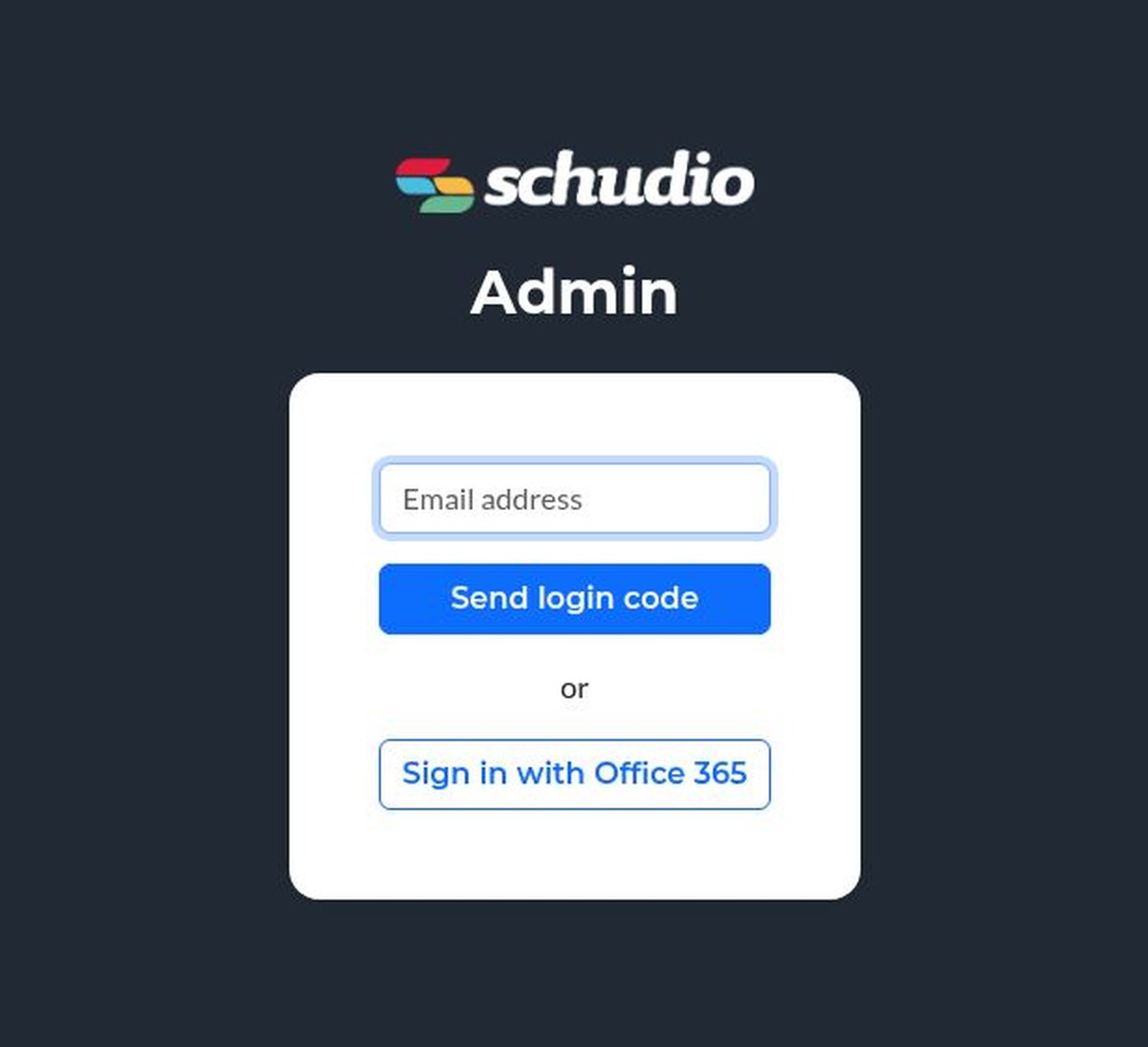
You will see the Schudio Admin login screen with a single box for your email address.
Step 2: Enter your email address
Type the email address your Schudio account was set up with, then click Send login code.
This must be the same address your account uses. A personal address, or a different work address, will not work even if it belongs to you.
Step 3: Check your email for the code
We send you an email containing a six digit code. It usually arrives within a few seconds.
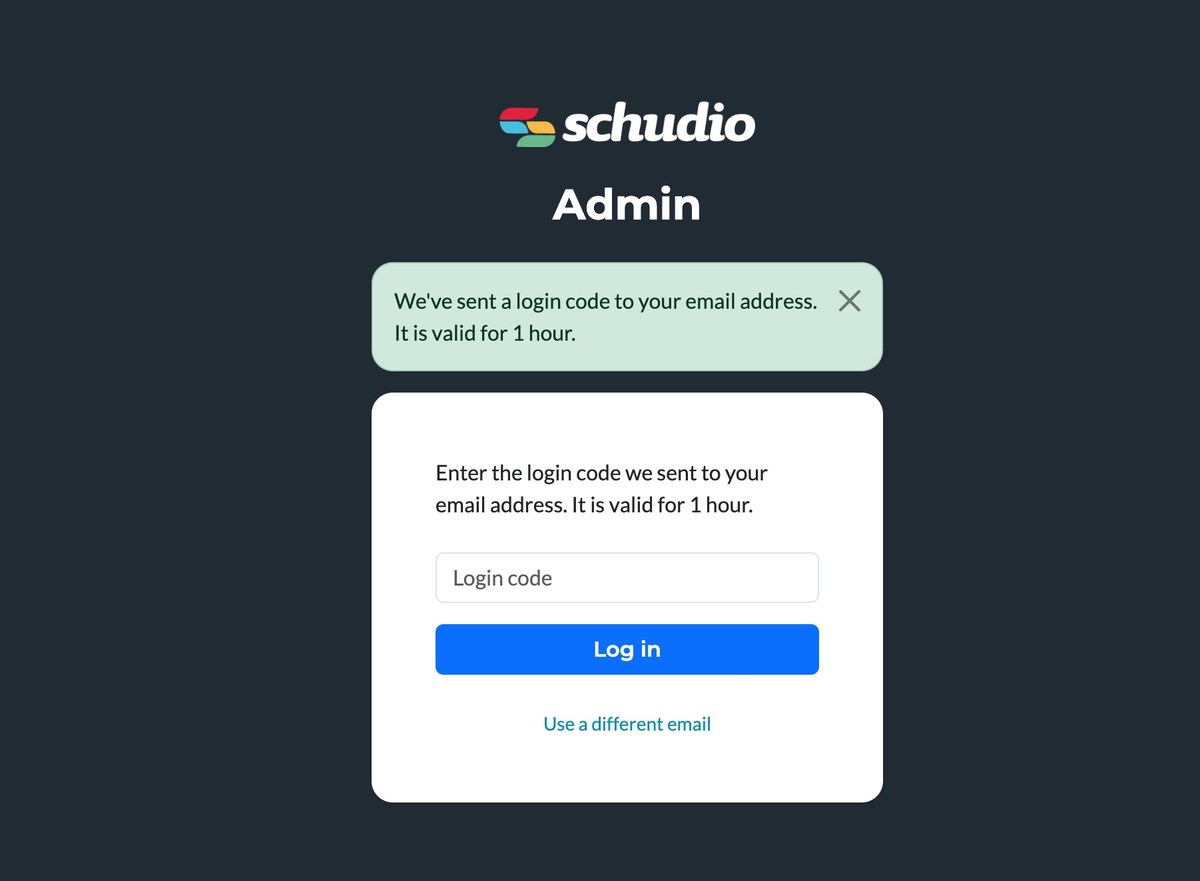
Back on the website, a green message confirms the code has been sent, and the screen changes to ask for it.
Step 4: Enter the code and log in
Type the six digit code into the Login code box and click Log in.
You are now signed in to your Schudio admin area.
If you typed the wrong email address on the previous screen, click Use a different email to go back and start again.
How long the code lasts
Each login code is valid for 1 hour. After that it stops working and you will need a new one.
To get a new code, go back to /admin, enter your email address again and click Send login code. Codes are single use, so always use the most recent email if you have requested more than one.
Signing in with Office 365
If your school uses Microsoft Office 365, you may see a Sign in with Office 365 button underneath the email box. This signs you in with your school Microsoft account instead, so there is no code to wait for.
This needs to be set up for your school first. See Managing Office 365 Login for more detail.
If something goes wrong
The email has not arrived. Give it a minute or two, then check your junk or spam folder. School email systems sometimes hold automated messages back briefly. If you find it in junk, mark it as safe so future codes come straight through.
The code is not accepted. Check you are using the code from the most recent email, and that it has not been sitting there for more than an hour. Request a fresh code and try again.
Nothing happens when you enter your email. Check the address is spelled correctly and is the one your account was set up with. If you are not sure which address that is, ask your website administrator.
You do not have an account. Someone at your school with admin access can add you, or you can contact the Schudio support team and we will point you in the right direction.
Still stuck?
Click the Get Help button in the bottom corner of the login screen, or email us and we will get you back in.