Companies
“Companies” is a new module now available in the admin area of your website. We’ve created this tool to make it easy for you to:
- Present affiliated companies on an internal page of your website.
- Link directly to external company websites.
- Upload and display related documents within each individual company’s tab.
Finding the Module
- Log in to the admin area of your website.
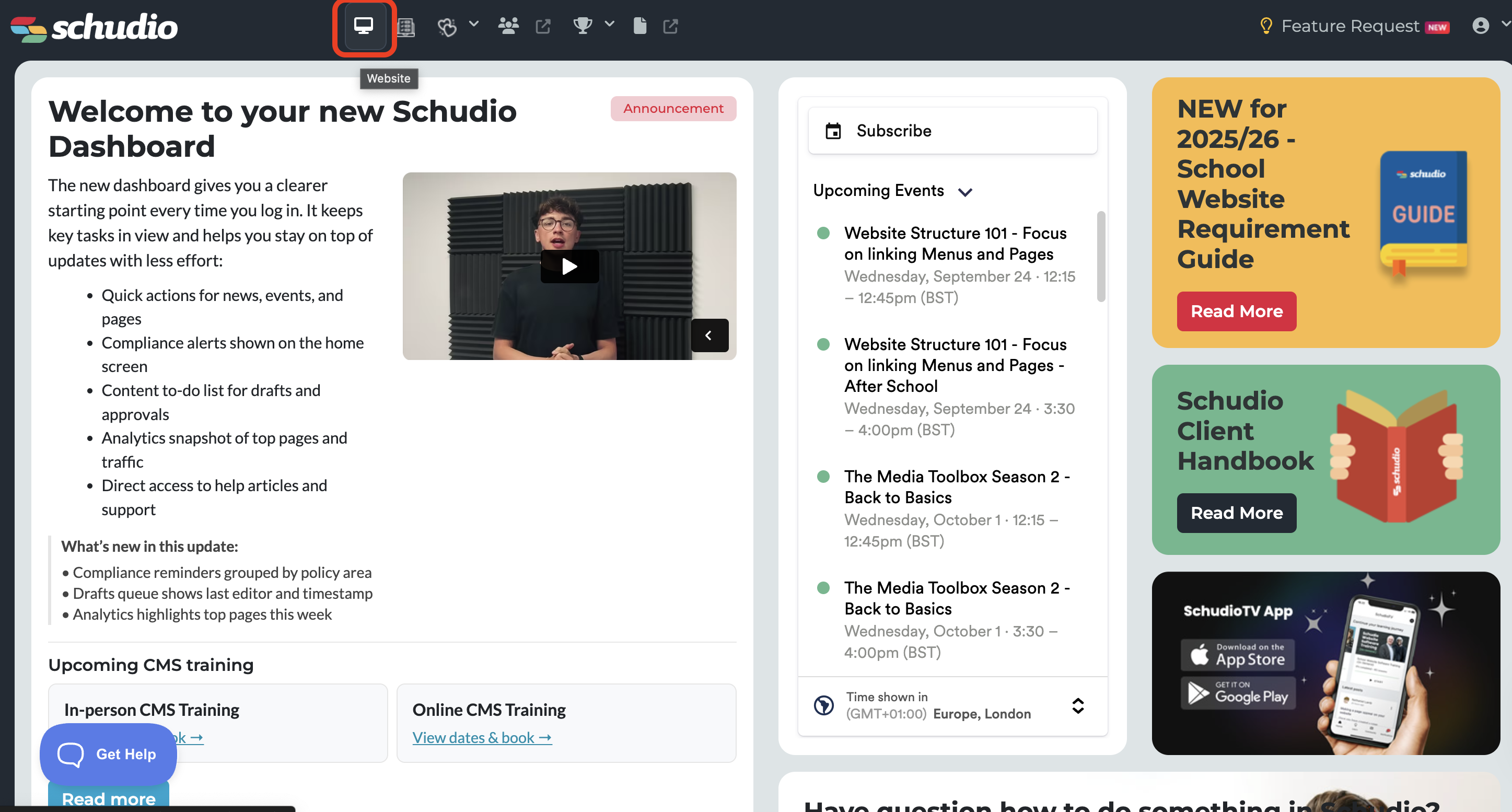
- On the Admin Dashboard, select the Website icon in the top toolbar. This will take you to your website editing area.
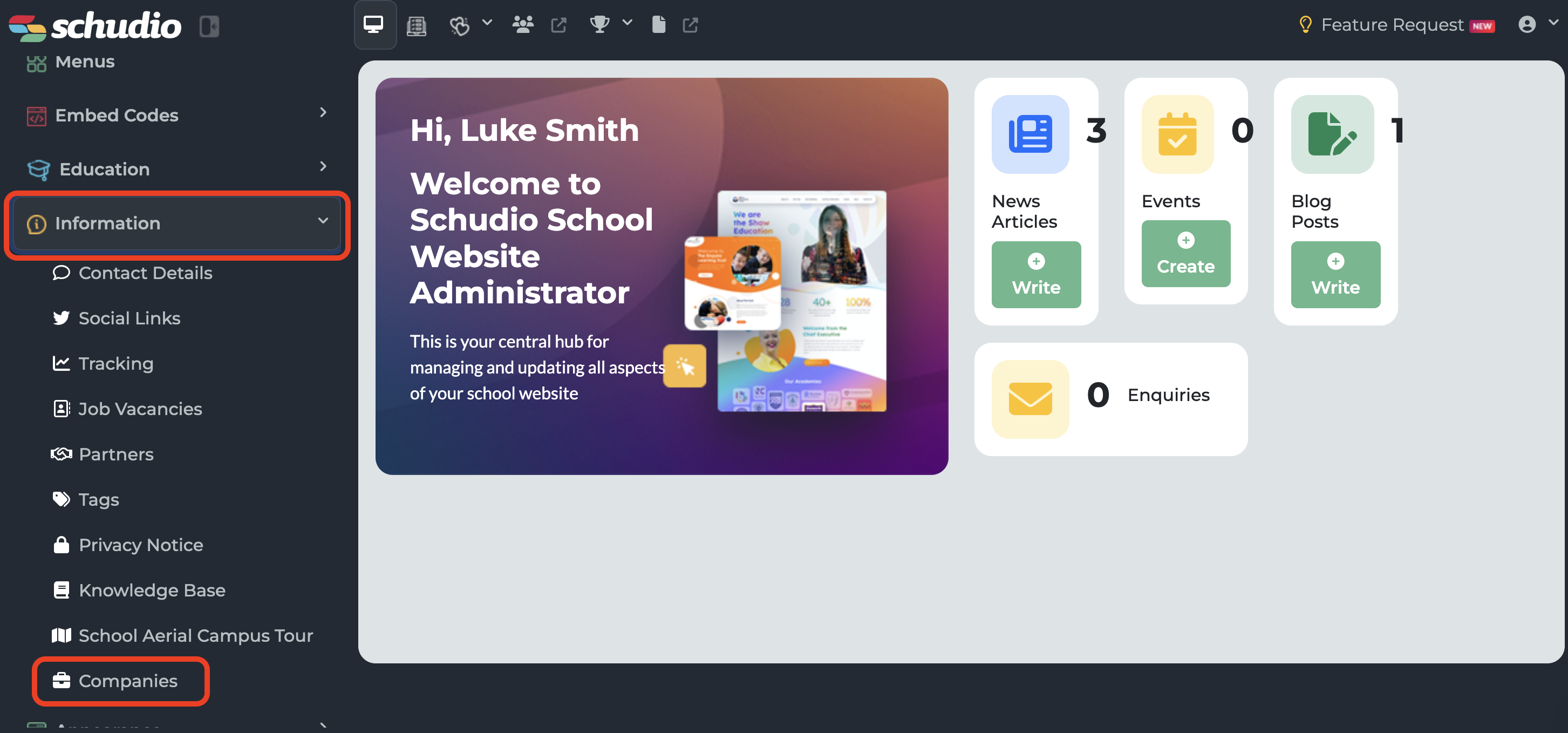
- Once you’re in the website tab, open the Information dropdown in the left-hand menu.
-
From here, select the Companies sub-menu, which you’ll find at the very bottom of the information dropdown list.
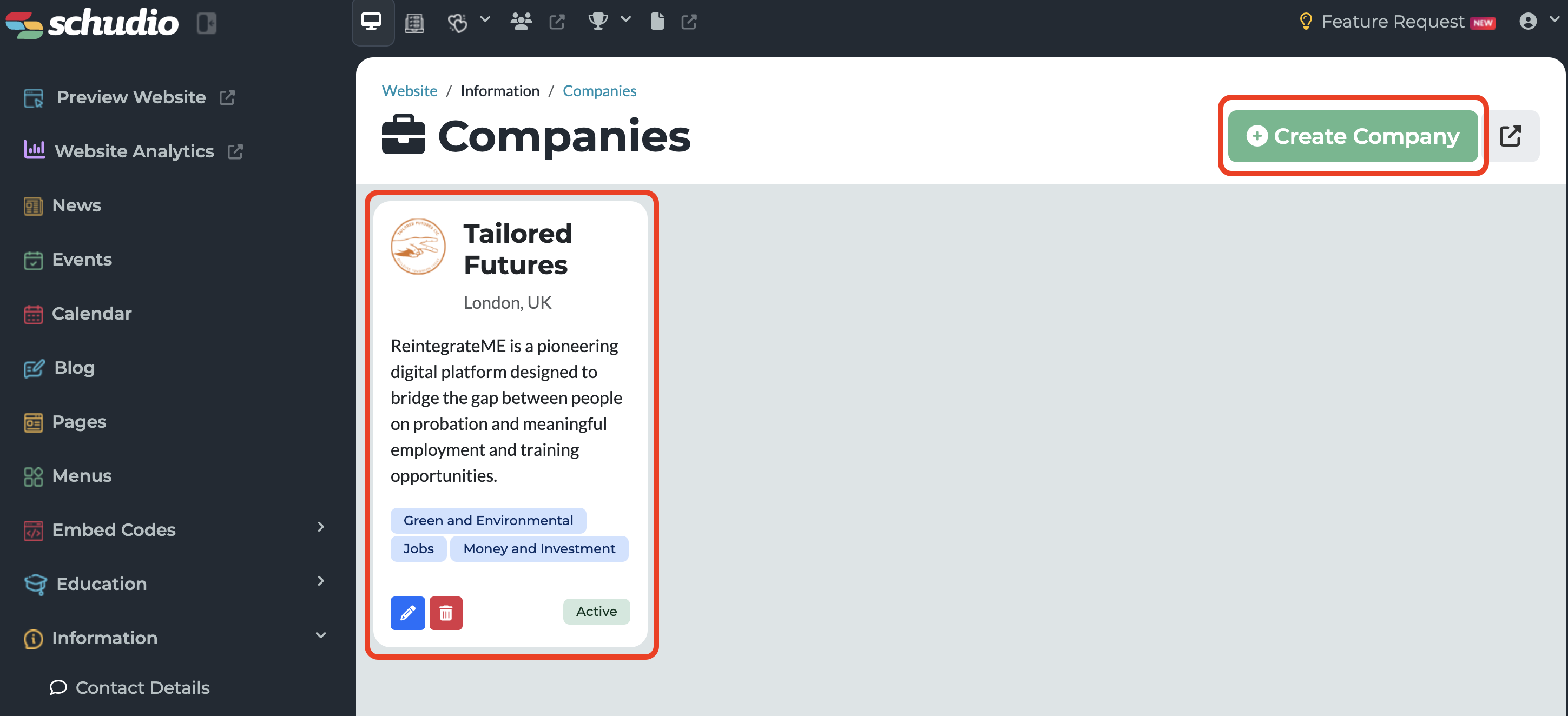
Once inside the Companies module, you’ll see:
- A list of companies you’ve already added using this tool.
- The option to create a brand-new company to include in this section.
Adding a New Company
- Select the Create Company button, located in the upper right-hand corner of the page.
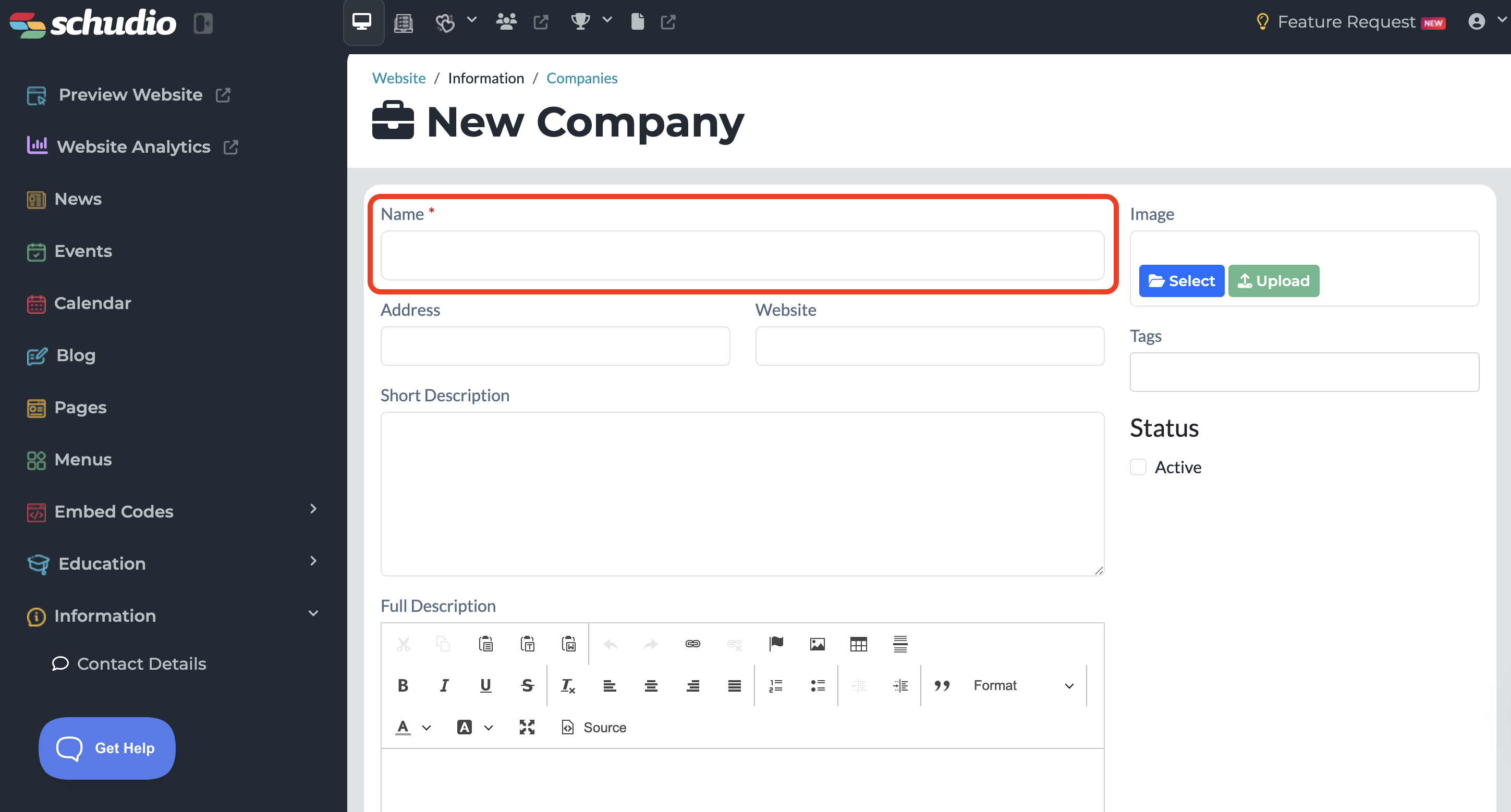
- You’ll then be taken to the New Company page. Here, you’ll find a series of fields to complete.
(*Some of these are compulsory fields, which you can identify by the red asterisk.)
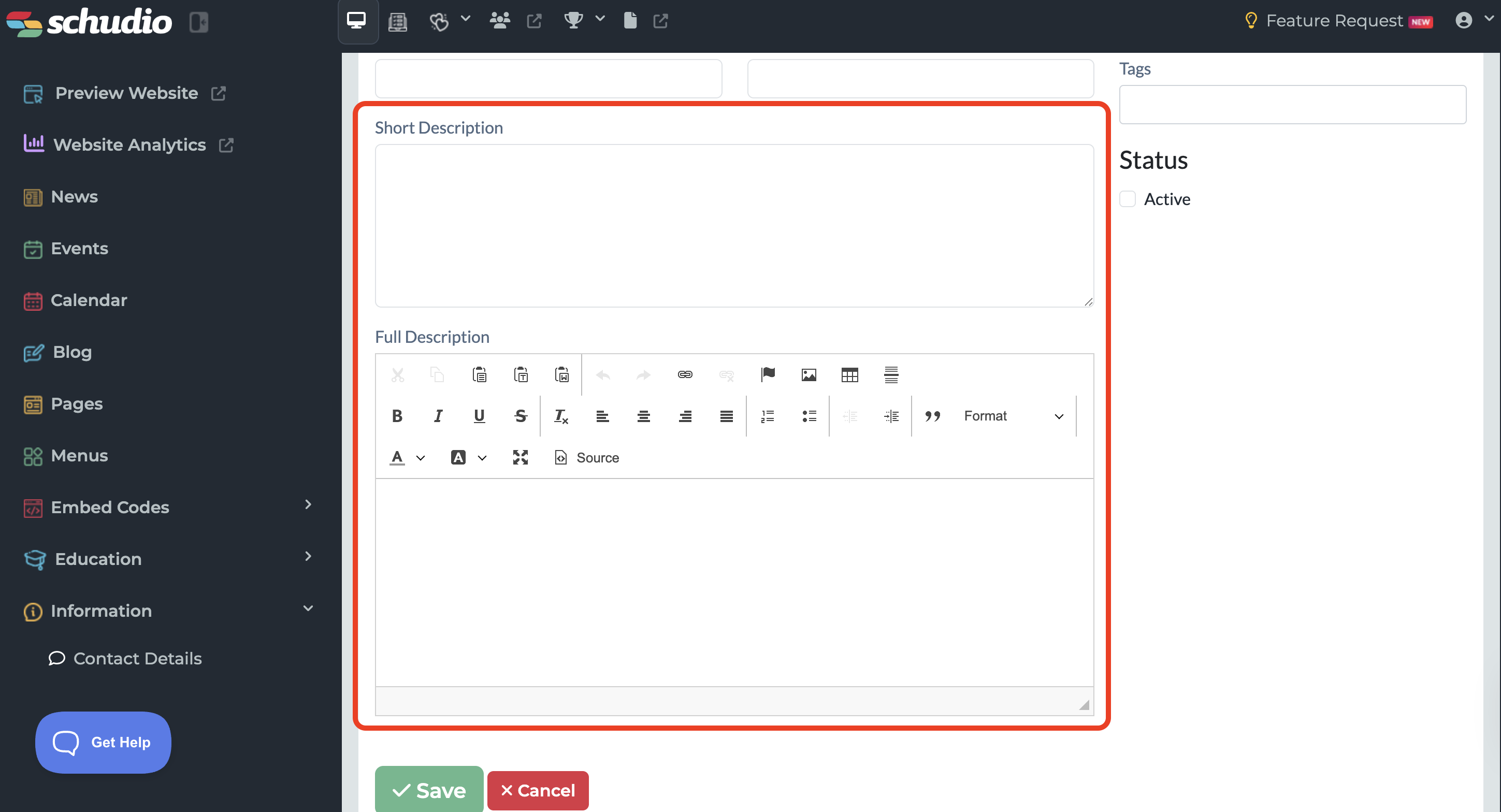
- You’ll also have the option to create both a short description, which appears on the company's landing page and a full description of the company, which users will be able to view when clicking into the tile.
- Adding a description is useful for providing background information and context that might help your website users.
- The full description content box works in the same way as the ones you may already be familiar with from editing pages.
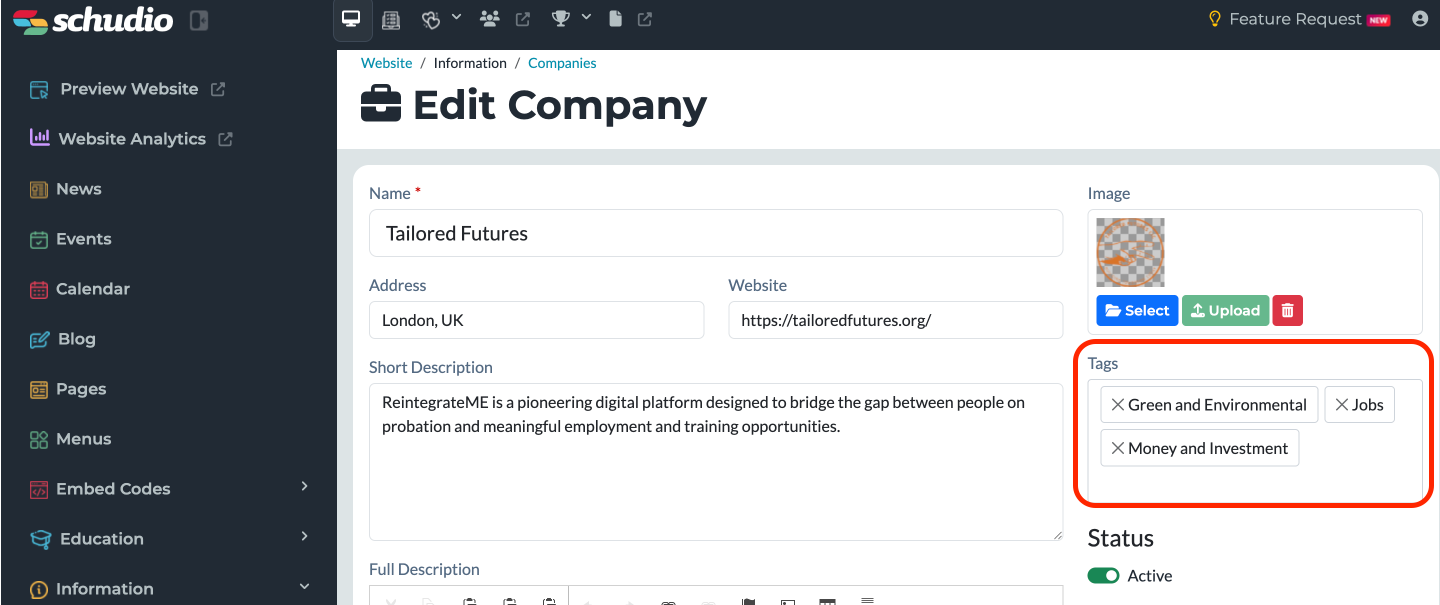
After completing the relevant fields for your new company, you may also want to explore Tags.
Adding Tags to Filter
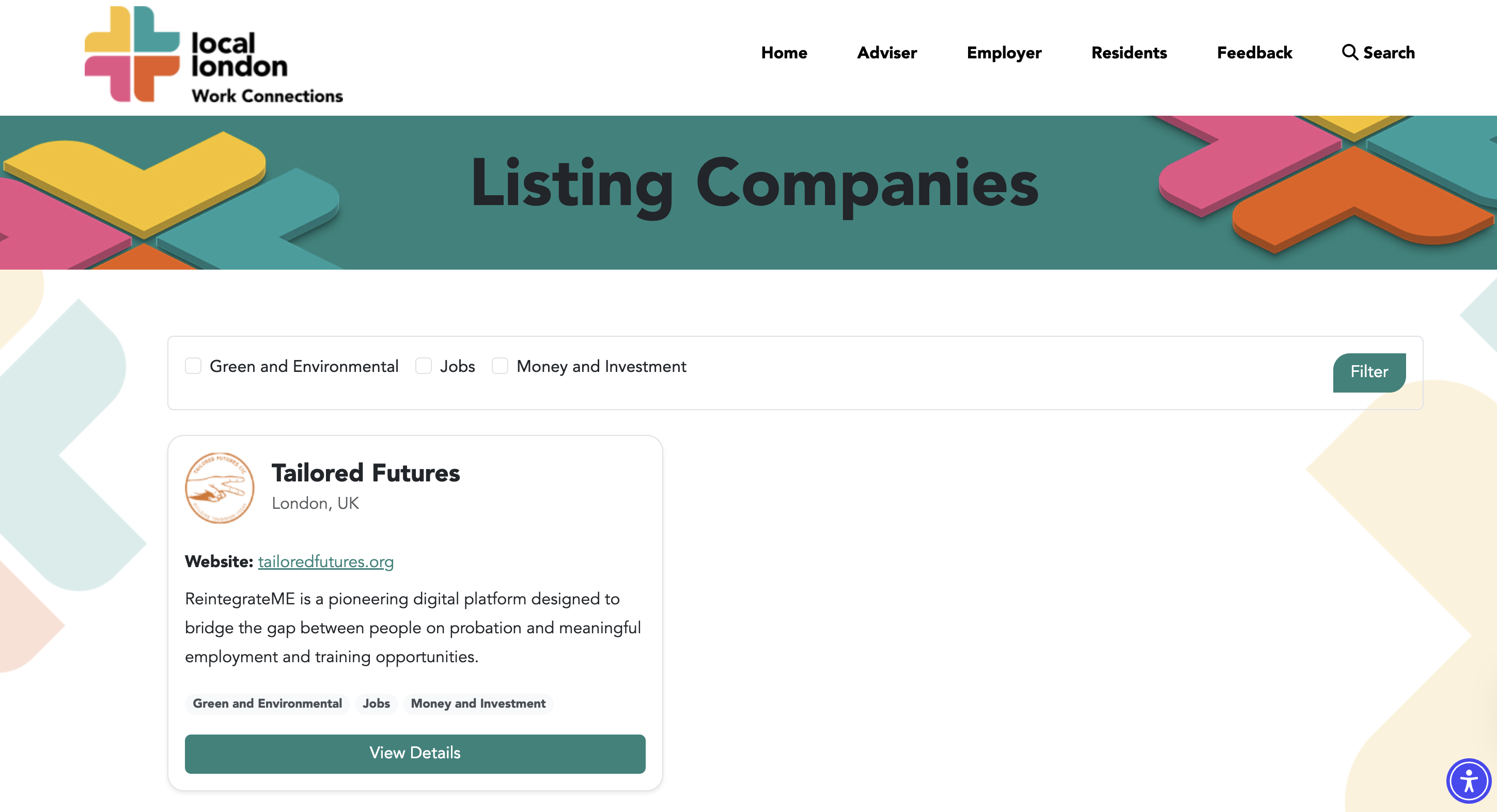
Tags allow visitors to filter the companies displayed on your website.
To choose what tags appear on your company page, select from the drop-down list. The tags which appear in the drop-down list will need to have been set up previously in the tags section of your website.
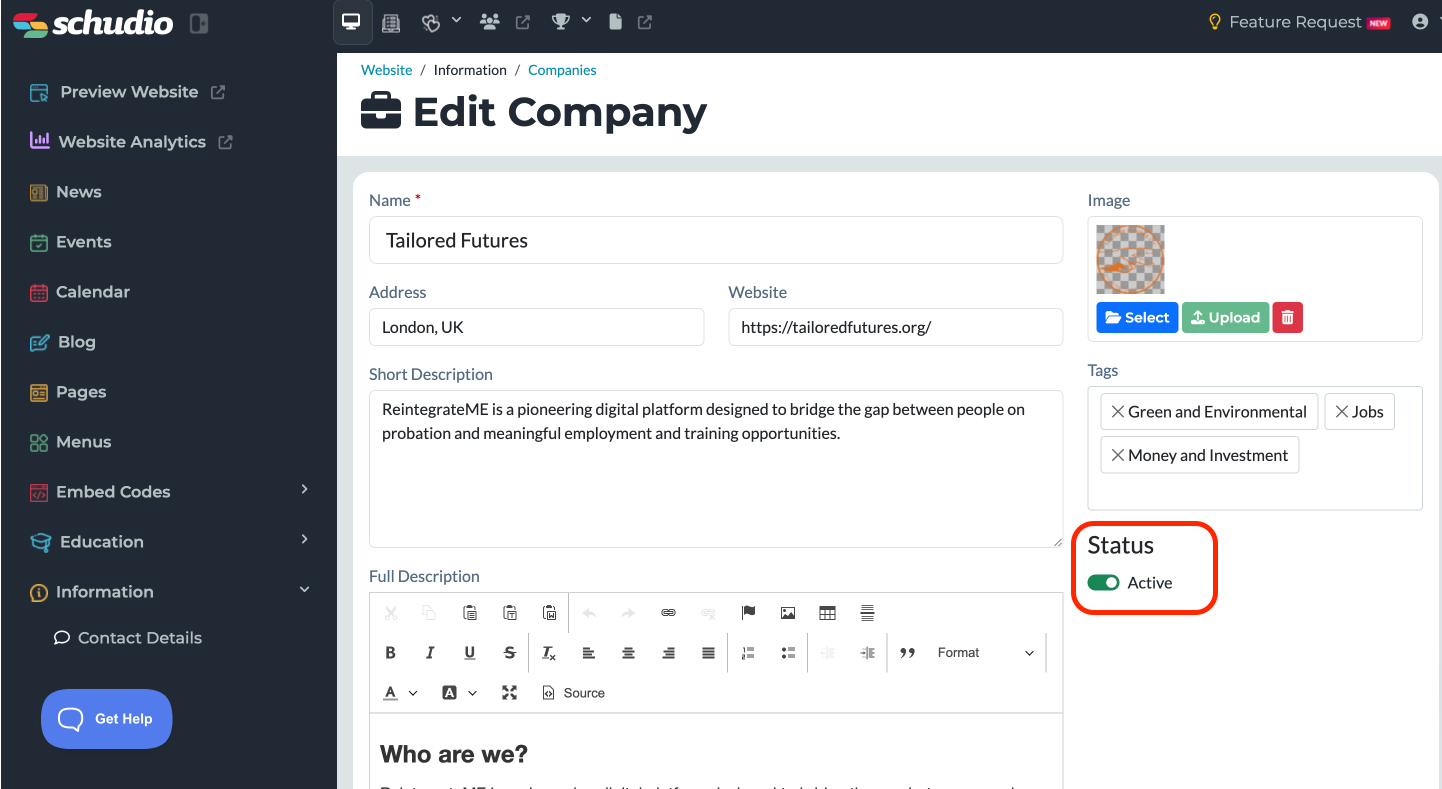
- Status – Once you've filled out all of the necessary fields, ensure Status is set to Active and select the save button at the bottom of the page.
If the status is not set to active before saving, the new company will not show on your website.
Creating the Company Page
In order for the Companies module to appear on your website, you need to create a page for it to sync with:
- Create a new page with the page title of Companies. This will automatically populate the URL field with /companies, which will allow the page to sync with the module. Then click save to create the page.
- Add the new companies page to your top menu structure (this process is the same as adding any new menu item).
Making Edits & Adding Documents
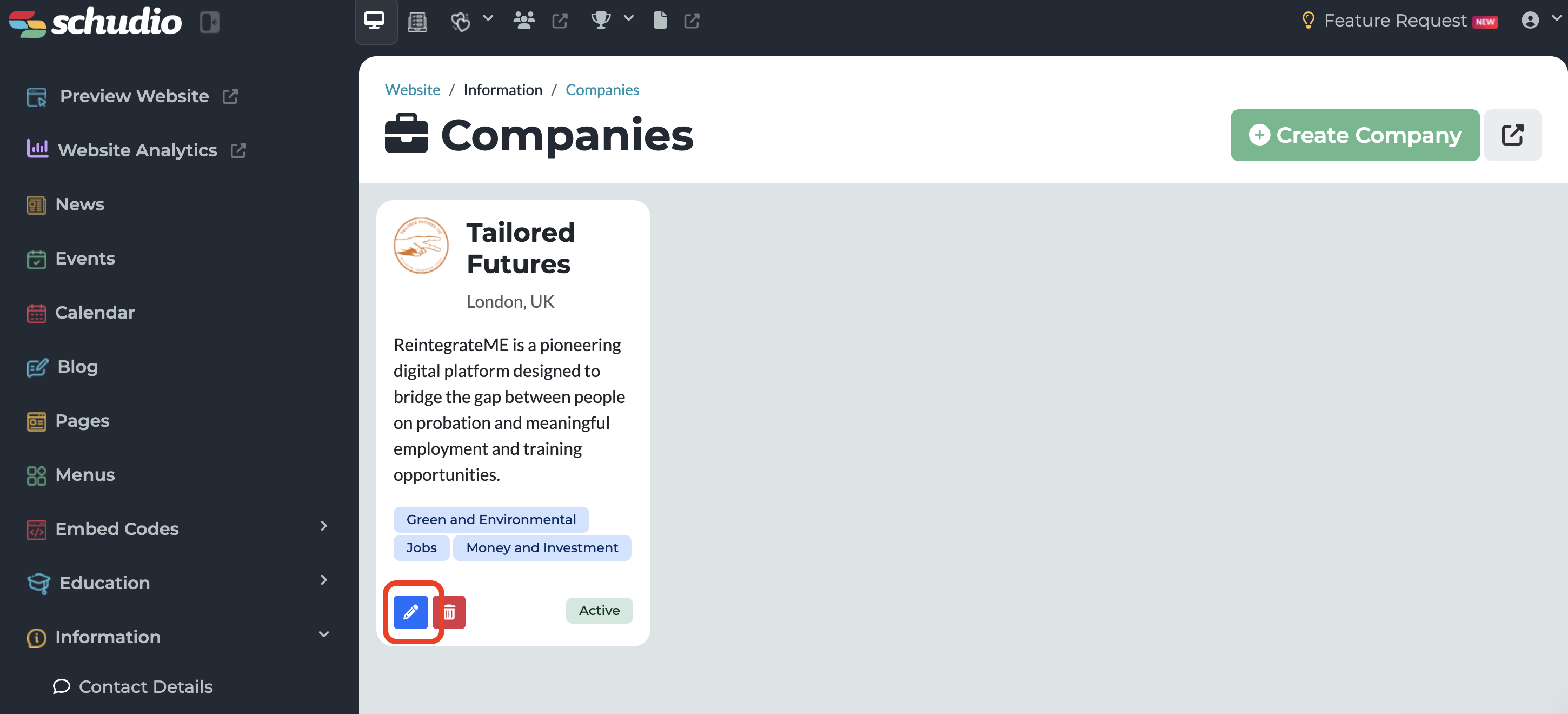
You can edit existing companies in the Companies module.
- To make edits to the general content, select the blue pencil, and you will then be taken to the Edit Company page:
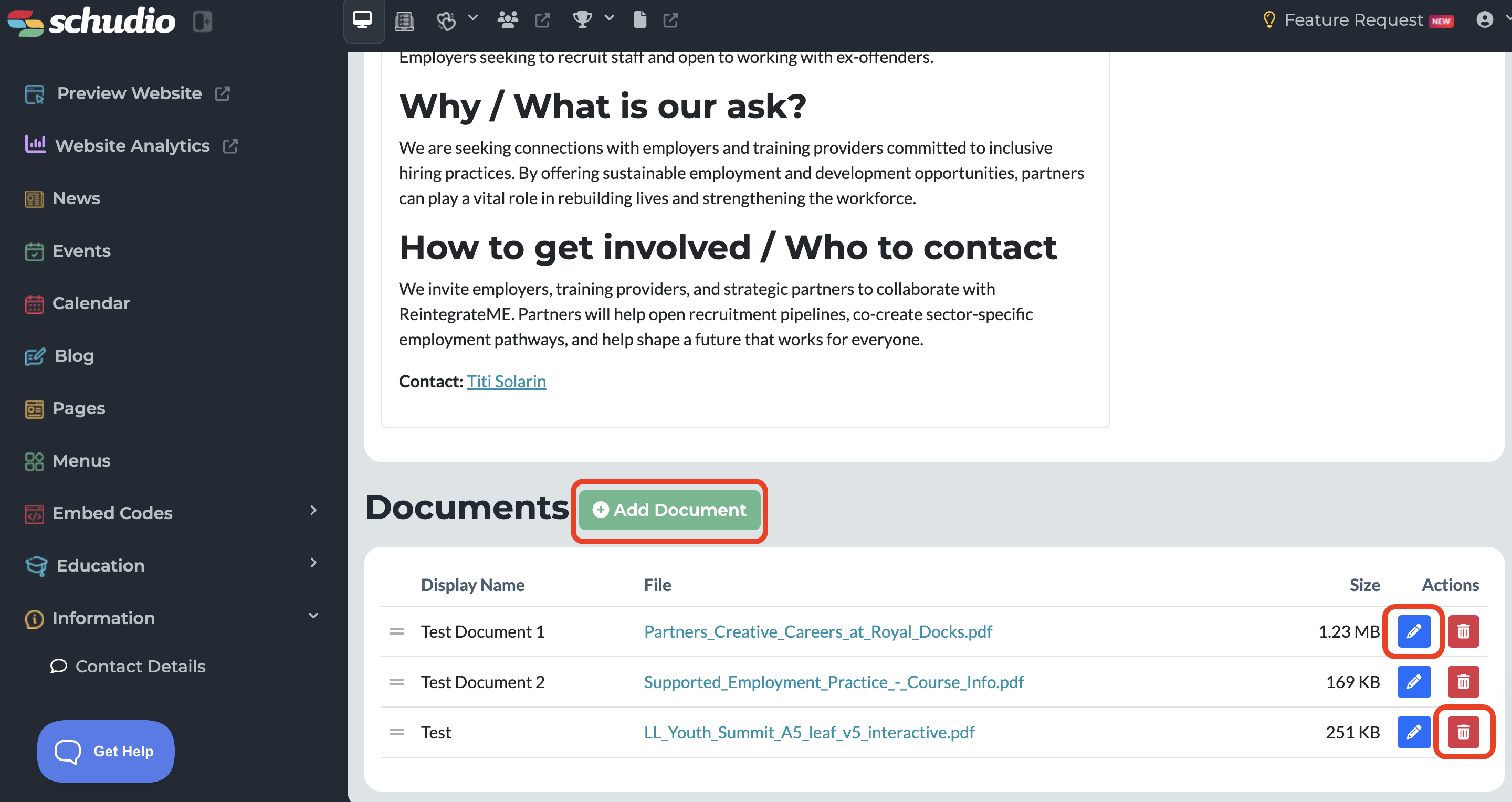
- To add documents, click on an existing company to take you to its overview page:
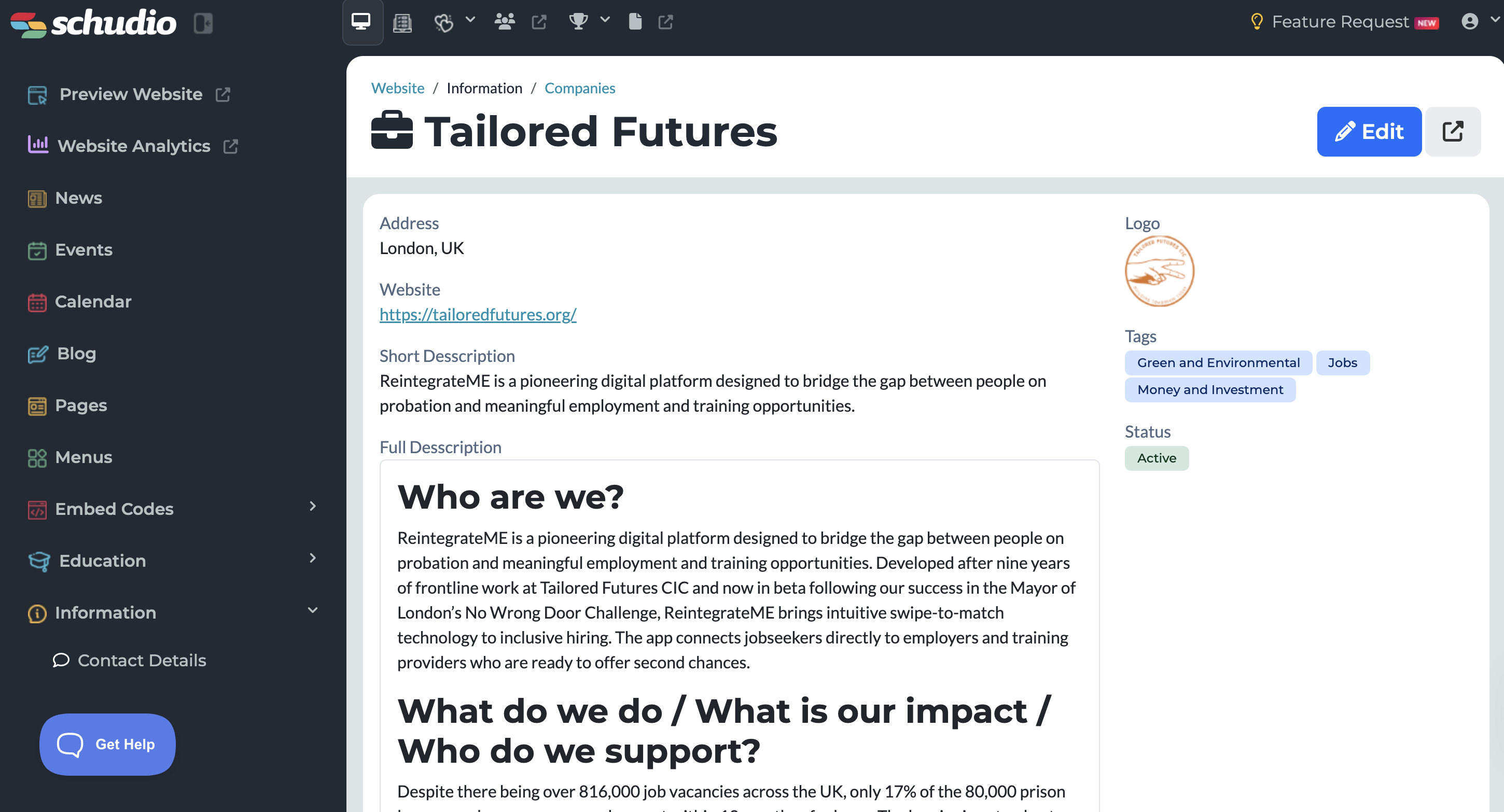
- Scroll to the bottom of the page, here you will find a section titled 'Documents' where you have the option to
- Add Document
- Edit existing documents with the blue pencil icon
- Delete existing documents with the red bin icon